
Search Engine Optimization is the backbone of digital success. Among the various tools available, the Yoast SEO WordPress Plugin stands as the most trusted solution for millions of website owners. This tool provides a comprehensive framework to enhance both your technical settings and your content quality.
This guide explores how to leverage the Yoast SEO WordPress Plugin to ensure your website reaches its full potential in search rankings.
Why the Yoast SEO WordPress Plugin is Essential
The Yoast SEO Plugin bridges the gap between technical complexity and content creation. It assists search engines in crawling your site effectively while simultaneously helping you write better articles. From generating XML sitemaps to managing site breadcrumbs, this plugin offers a complete toolkit for modern webmasters.
Step 1: Installation and Activation
Setting up the Yoast SEO WordPress Plugin is a straightforward process.
- Log in to your WordPress Dashboard.
- Go to Plugins and click Add New.
- Search for “Yoast SEO Plugin” in the search box.
- Click Install Now and then Activate.
Step 2: First Time Configuration
Once activated, the Yoast SEO WordPress Plugin will appear in your sidebar menu. Navigate to SEO and then General to begin the configuration wizard.
SEO Data Optimization Start by allowing the Yoast SEO Plugin to optimize your site data. This allows the plugin to build a specialized index, which significantly improves site speed and technical efficiency.
Site Representation The Yoast SEO WordPress Plugin needs to identify if your site represents an “Organization” or a “Person.” This information is vital for the Google Knowledge Graph. Upload your logo or select your user profile to ensure your brand appears correctly in search results.

Step 3: Configuring General Settings
Inside the Yoast SEO WordPress Plugin settings, you can toggle specific features to suit your needs.
Features
- XML Sitemaps: Always keep this enabled so the Yoast SEO WordPress Plugin can tell search engines exactly where your content lives.
- Readability Analysis: This feature analyzes your writing style to ensure your content is accessible to a broad audience.
- Webmaster Tools: Use this section to verify your site with Google and Bing directly through the Yoast SEO Plugin interface.
Step 4: Search Appearance and Content Types
The Yoast SEO WordPress Plugin allows you to automate how your pages appear in search results.
Title and Meta Templates You can create dynamic templates for your titles. A popular structure is using the post title followed by the site name. By setting these defaults in the Yoast SEO WordPress Plugin, you maintain a consistent brand image across all search snippets.
Schema Settings The Yoast SEO Plugin automatically adds Schema markup to your pages. This helps search engines understand if your content is an Article, a Product, or a Contact Page, which can lead to enhanced “Rich Results” in Google.
Step 5: On Page Content Optimization
The most popular feature of the Yoast SEO Plugin is the optimization box found within the post editor.
Focus Keyphrase By entering your target keyword into the Yoast SEO Plugin, you receive real time feedback. The plugin checks if your keyword appears in the title, headings, and image alt text.
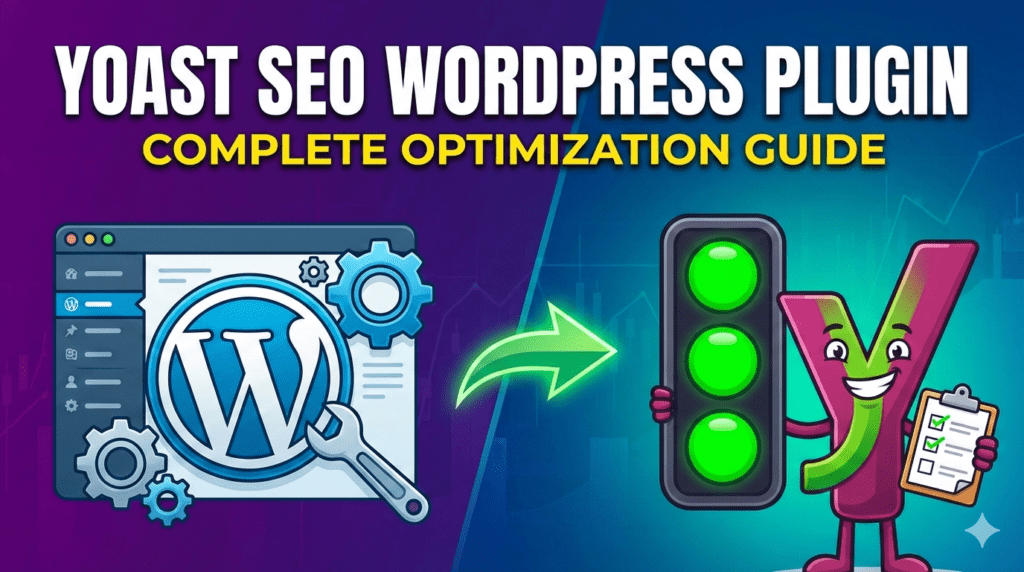
The Traffic Light System The Yoast SEO Plugin uses a simple color code:
- Green: Your page is fully optimized.
- Orange: There is room for improvement.
- Red: The page requires significant SEO changes.
Step 6: Advanced Tools
The Yoast SEO Plugin includes powerful tools for advanced users, such as a Bulk Editor for titles and a File Editor for managing your robots.txt file without needing an FTP client.

Professional Support for Your Website
Managing the Yoast SEO Plugin alongside other technical tasks can be time consuming. If you require expert help with your site, wpmatrix.net provides WordPress solutions that cover everything from performance tuning to complete site management. Their team ensures your platform is optimized so you can focus on growth.
Summary
The Yoast SEO WordPress Plugin is an invaluable asset for any digital strategy. By consistently applying the recommendations provided by the plugin, you build a stronger foundation for organic traffic.